Vscode
Visual Studio Code is a popular editor that can be extended to support most programming languages by installing the suitable extension.
Python Extension#
The Python extension can automatically detect Pixi environments via the .pixi folder in your project root.
Manual Selection
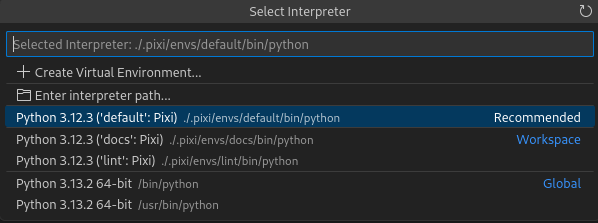
If it isn't detected automatically, you can manually select the interpreter (e.g. .pixi/envs/default/bin/python) via the Python: Select Interpreter command in the Command Palette.
Pixi VS Code Extension#
For a more integrated experience, use the community-maintained Pixi extension. It adds:
- Task Explorer: Run Pixi tasks directly from the UI.
- Dependency Management: Add or remove packages without leaving the editor.
Tips & Tricks#
C++ Support (CMake)#
For C++ projects, use CMake Presets to point to the Pixi environment tools (like ninja or clang).
Direnv Extension#
Direnv provides a language agnostic way of running VSCode in a Pixi environment. First, install the Direnv extension from the marketplace. Then follow the instructions in our Direnv doc page.
Devcontainer Extension#
VSCode Devcontainers are a popular tool to develop on a workspace with a consistent environment. They are also used in GitHub Codespaces which makes it a great way to develop on a workspace without having to install anything on your local machine.
To use pixi inside of a devcontainer, follow these steps:
Create a new directory .devcontainer in the root of your workspace.
Then, create the following two files in the .devcontainer directory:
FROM mcr.microsoft.com/devcontainers/base:jammy

ARG PIXI_VERSION=v0.81.0

RUN curl -L -o /usr/local/bin/pixi -fsSL --compressed "https://github.com/prefix-dev/pixi/releases/download/${PIXI_VERSION}/pixi-$(uname -m)-unknown-linux-musl" \
    && chmod +x /usr/local/bin/pixi \
    && pixi info

# set some user and workdir settings to work nicely with vscode
USER vscode
WORKDIR /home/vscode

RUN echo 'eval "$(pixi completion -s bash)"' >> /home/vscode/.bashrc
{
    "name": "my-workspace",
    "build": {
      "dockerfile": "Dockerfile",
      "context": "..",
    },
    "customizations": {
      "vscode": {
        "settings": {},
        "extensions": ["ms-python.python", "charliermarsh.ruff", "GitHub.copilot"]
      }
    },
    "features": {
      "ghcr.io/devcontainers/features/docker-in-docker:2": {}
    },
    "mounts": ["source=${localWorkspaceFolderBasename}-pixi,target=${containerWorkspaceFolder}/.pixi,type=volume"],
    "postCreateCommand": "sudo chown vscode .pixi && pixi install"
}
Put .pixi in a mount
In the above example, we mount the .pixi directory into a volume.
This is needed since the .pixi directory shouldn't be on a case insensitive filesystem (default on macOS, Windows) but instead in its own volume.
There are some conda packages (for example ncurses-feedstock#73) that contain files that only differ in case which leads to errors on case insensitive filesystems.
Secrets#
If you want to authenticate to a private conda channel, you can add secrets to your devcontainer.
{
    "build": "Dockerfile",
    "context": "..",
    "options": [
        "--secret",
        "id=prefix_dev_token,env=PREFIX_DEV_TOKEN",
    ],
    // ...
}
# ...
RUN --mount=type=secret,id=prefix_dev_token,uid=1000 \
    test -s /run/secrets/prefix_dev_token \
    && pixi auth login --token "$(cat /run/secrets/prefix_dev_token)" https://repo.prefix.dev
These secrets need to be present either as an environment variable when starting the devcontainer locally or in your GitHub Codespaces settings under Secrets.